-
 USD
USD 
 INR
INR

Difference between POP3 and...
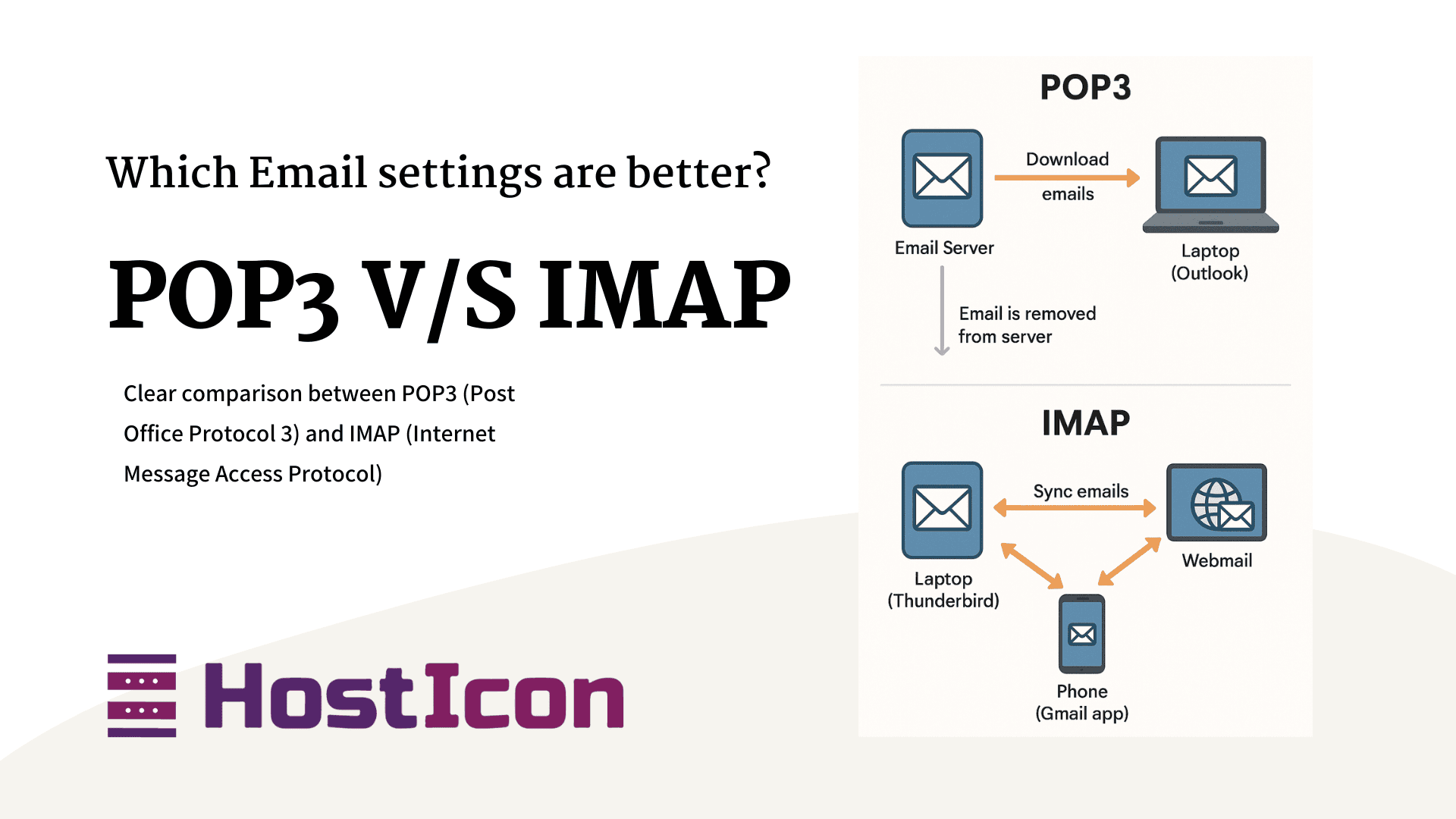
Difference between POP3 and IMAP
When setting up an email client like Outlook, Thunderbird, or even configuring it on your phone, you’re often asked to choose between POP3 and IMAP. While both are protocols used to retrieve emails from a mail server, they function in different ways — and your choice can significantly affect how you access, manage, and store your emails.
In this post, we’ll break down the difference between POP3 and IMAP, explore their pros and cons, and help you decide which one is right for your needs.
Here is a clear comparison between POP3 (Post Office Protocol 3) and IMAP (Internet Message Access Protocol)
What Are POP3 and IMAP?
- POP3 (Post Office Protocol, version 3):
Downloads emails from the server to your device and (by default) deletes them from the server afterward. - IMAP (Internet Message Access Protocol):
Keeps emails on the server and syncs them across all your devices in real-time.
Both protocols are used for incoming mail, while sending emails typically uses SMTP (Simple Mail Transfer Protocol).
POP3 (Post Office Protocol version 3)
How it works:
- Emails are downloaded from the server to your device, then removed from the server (default behavior, though some clients allow keeping a copy on the server).
- Email is stored locally on the device after download.
Best for:
- Users with a single device, limited server storage, or unreliable internet.
Pros:
- Emails stored locally—always accessible offline after download.
- Saves server space because emails are removed from the server after being downloaded to the local system.
- Simple setup and light on server resources.
Cons:
- Doesn’t sync across multiple devices.
- If an email is deleted or the device is lost, the emails are gone forever (unless backups exist).
- No access to sent items or folders across devices.
- Higher risk of malware/virus exposure through local attachments.
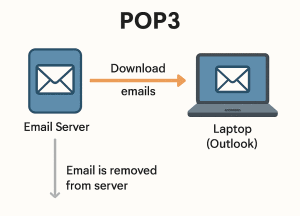
pop3 email
Example: POP3 Use Case – Single Device Access
You configure POP3 in Microsoft Outlook on your home laptop.
How it works:
Outlook downloads all your emails from the server.
After downloading, emails are removed from the server (by default).
You can read and manage emails offline.
If you open Gmail or another client on your phone, you won’t see those emails—they were already downloaded and deleted from the server.
Good for:
Limited or no internet access.
You want to keep all emails only on your personal laptop.
IMAP (Internet Message Access Protocol)
How it works:
- Emails remain on the server and are synced across all connected devices.
- When you read, delete, or organize emails, changes reflect on all devices.
Best for:
- Accessing mail from multiple devices (e.g., phone, tablet, computer).
- Users who need to keep email history synchronized.
Pros:
- Full synchronisation between all devices.
- Access to inbox, sent mail, and custom folders from anywhere.
- Server-side backups ensure extra safety.
- Easy to setup across all devices.
Cons:
- Needs internet access for full functionality.
- Uses more server storage.
- Can be slightly more complex to configure.
- Mail is only on the server; so if your mail device doesn’t store local copies and you’re out of network – no email
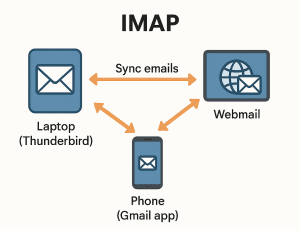
IMPS Email
Quick Summary Table:
| Feature | POP3 | IMAP |
| Storage | Local device | Server |
| Sync Across Devices | ❌ No | ✅ Yes |
| Offline Access | ✅ Yes (downloaded emails) | ✅ Limited (cached emails) |
| Server Space Usage | Low | High |
| Setup Complexity | Simple | Moderate |
| Folder Support | ❌ No | ✅ Yes |
Example: IMAP Use Case – Multiple Device Access
You set up IMAP in:
Thunderbird on your PC,
Gmail app on your phone,
Webmail in your browser.
How it works:
Emails stay on the server and are synced in real-time.
If you read or delete an email on your phone, the change reflects in Thunderbird and Webmail.
If you create folders or labels, they are also visible across all devices.
You can access your emails from anywhere.
Good for:
Users who switch between laptop, mobile, and web access.
Businesses with remote teams.
- Good for Remote teams, frequent travelers, and anyone who switches between laptop, phone, and webmail.
Here is a user guide on How to setup Outlook and Other Email clients using SMTP AND IMAP
Which Should You Use?
- Choose IMAP if you check email on multiple devices and want everything to stay in sync.
- Choose POP3 if you only use one device and want to download and store emails locally.
For most modern users and businesses, IMAP is the better choice. POP3 is still useful in niche cases, but IMAP’s convenience and reliability make it the standard for today’s email communication.

